2026-05-05Last updated
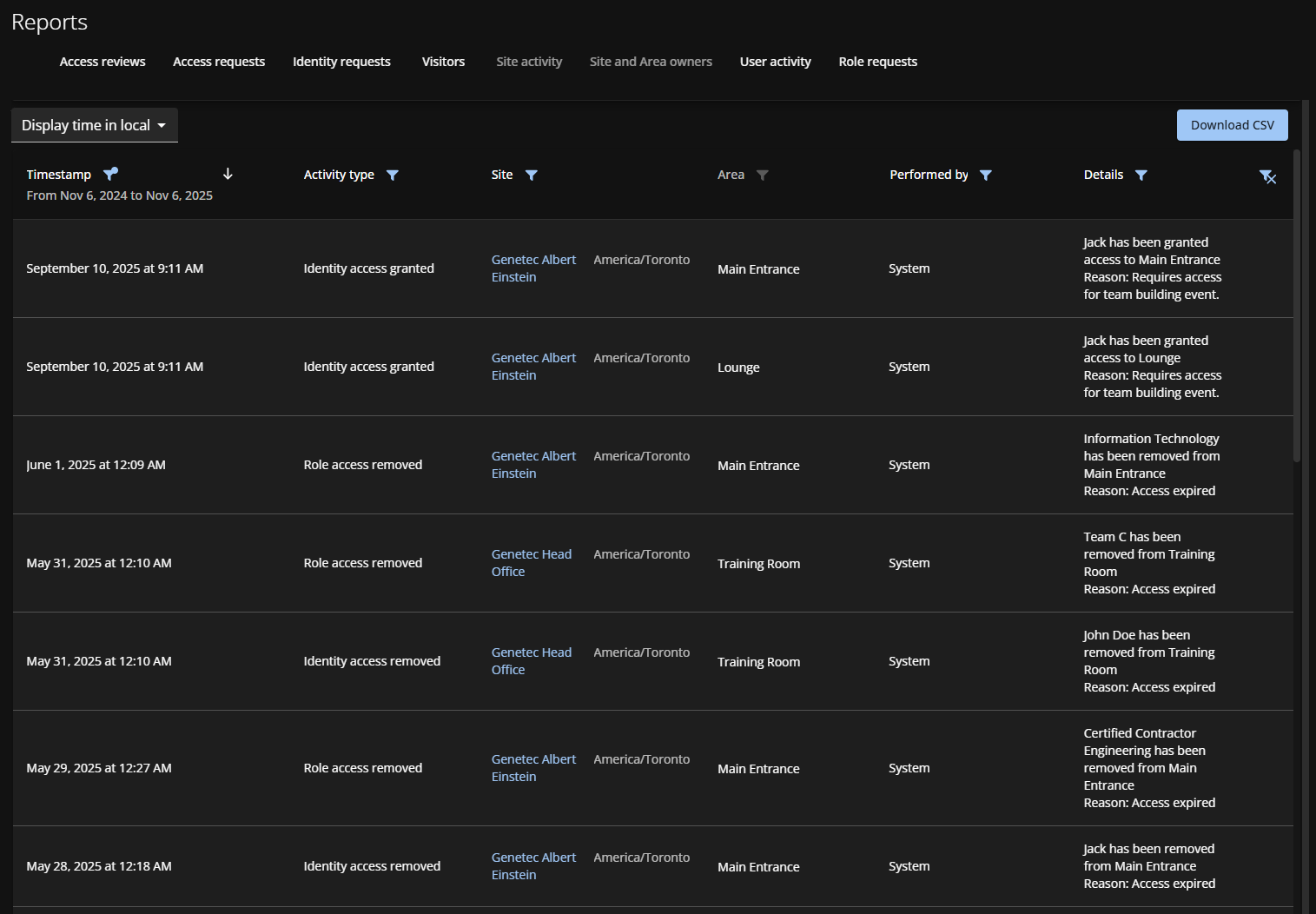
To review an audit trail of site activity, Site owners can view a site activity report
in Genetec ClearID™ for a specific site.
Procedure
-
From the homepage, click .
-
In the Site activity report page, select whether to display times
in local or UTC.
-
In the Sites column, select the site that you require.
-
In the Timestamp column, select a preset option or click Date
range to specify a custom period.
-
(Optional) Click the arrow icons to sort by ascending or descending
date.
-
Use the remaining filters as needed:
- Activity type
- Filter by activity type. For example: Area owner added, Identity access removed,
Role access granted.
- Area
- Filter by area name.
- Performed by
- Filter by who performed an activity. For example, a task performed by a specific
user, or a task performed by the system.
- Details
- Search for details or reasons using keywords.
-
Click Download CSV and follow your browser prompts to save the
file.
By default, the file name includes the site name and date range. For example,
yoursitename_fromdate_to_todate_SiteActivityReport.csv(
Genetec
Head Office_from_2020-10-22_to_2021-10-22_SiteActivityReport.csv).
The
contents of the CSV file can vary depending on the filters you've selected when you
download the report.
-
Click
 to reset filters.