To grant access to employees who do not meet automated provisioning policy criteria,
Role managers can manually add role members in Genetec ClearID™.
What you should know
When a provisioning policy is enabled, role members are added automatically based on
policy rules.
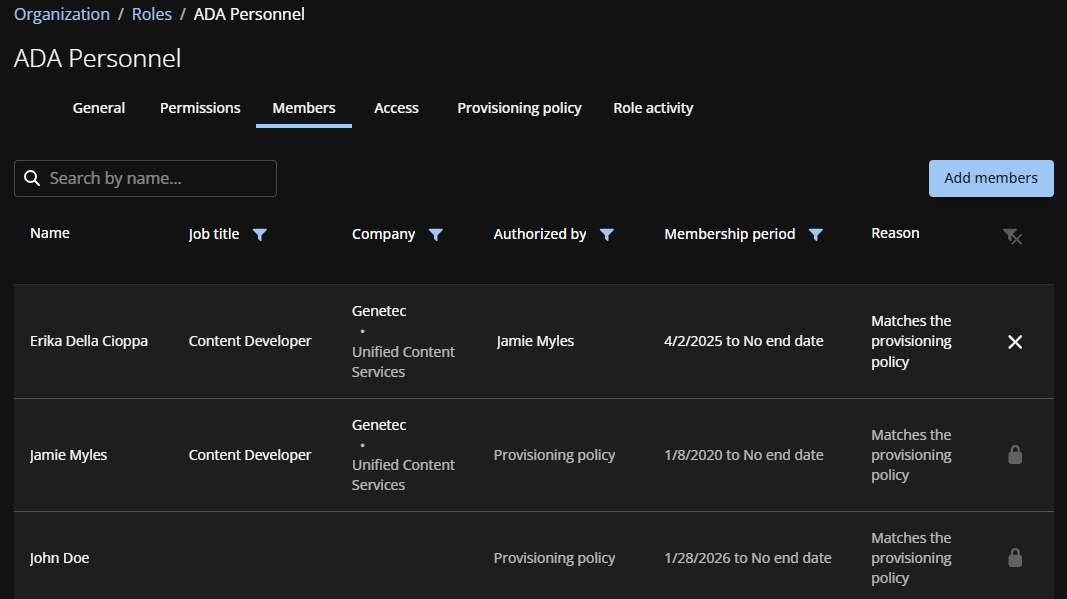
Automatically added members appear in the Authorized by column as Provisioning
policy.
Role members that match a provisioning policy are locked and cannot be removed.
Role members that no longer match a provisioning policy are immediately unlocked. They
are automatically removed after the period specified in a provisioning policy.
You can also add members manually if they don’t match the policy but still need access.
These are labeled as Manual in the Authorized by column.
Procedure
From the homepage, click Organization
> Roles and select a role.
Click Members.
Click Add members.
Search for or select one or more members.
Enter a reason and click Add.
In the ADA Personnel role, two members were added by provisioning policy and one
manually. Click a name in the Name column to view or modify the identity
details.
(Optional) To immediately remove any role members who no longer meet the policy
criteria, or role members that were added manually, click and then click Remove.

 and then click Remove.