2026-05-05Last updated
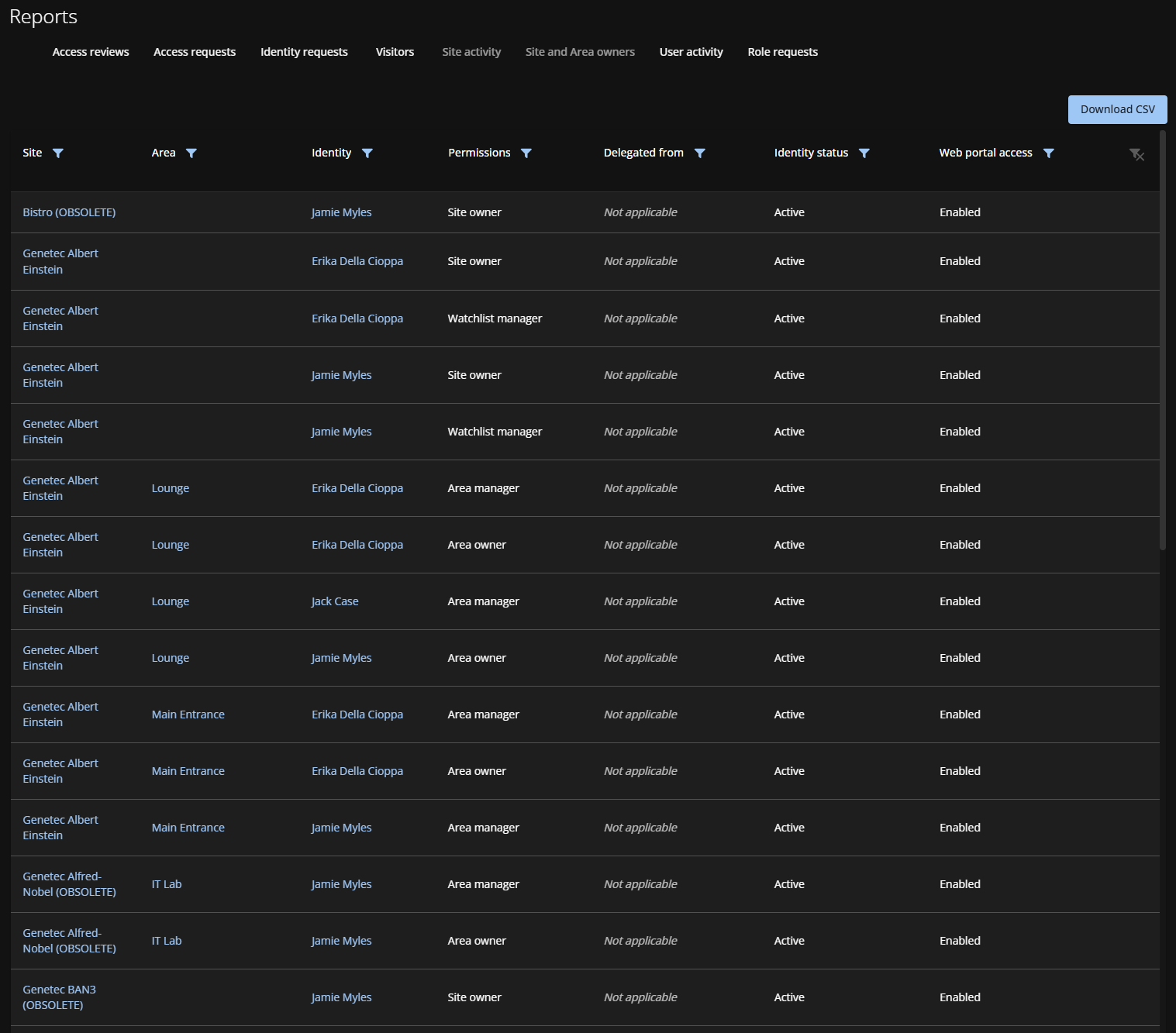
To audit site and area ownership, Account administrators and Site owners can view the
site and area owners report in Genetec ClearID™ to review identities with ownership
permissions.
What you should know
When a Site owner views the report, only information about their own sites is
shown.
Procedure
-
From the homepage, click .
-
Use the filters as needed:
- Site
- Filter by site name.
- Area
- Filter by area name.
- Identity
- Filter by the identity's name or email.
- Permissions
- Filter by the type of permission. For example: Area manager, Area owner.
- Delegated from
- Filter by the name or email of the person from whom the permissions were
delegated.
- Identity status
- Filter by active or inactive status.
- Web portal access
- Filter by web portal access.
-
Click Download CSV and follow your browser prompts to save the
file.
By default the exported file is created using the report name and download date. For
example,
SiteAreaOwners_2022-02-14.csv.
The contents of the CSV
file can vary depending on the filters you've selected when you download the
report.
-
Click
 to reset filter selections.