
Adding watchlist managers
2026-09-28Last updated
In Genetec ClearID™, a watchlist manager is responsible for creating and maintaining watchlists. They can add individuals or companies, configure site-level or global watchlists, and update existing settings. Before you can add or modify watchlists, you must first assign watchlist managers.
Before you begin
What you should know
- Only Account administrators can add watchlist managers in ClearID.
- You can add a maximum of 100 watchlist managers per site.
Procedure
-
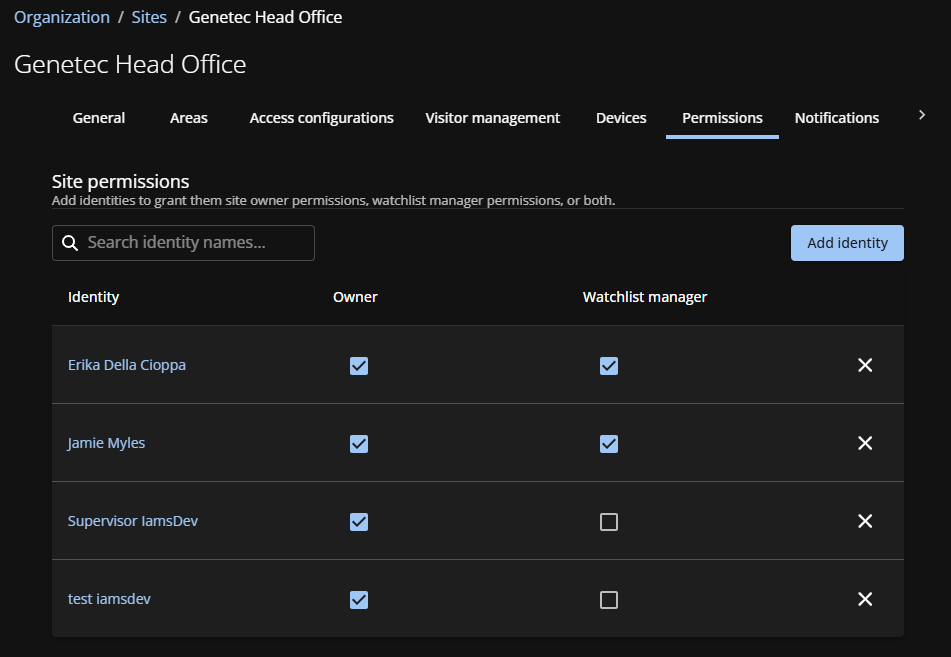
Select the Watchlist manager check box to assign watchlist
manager permissions.
-
(Optional) Click to remove all permissions that are no longer required from an
identity.
-
(Optional) Click to remove all permissions that are no longer required from an
identity.
-
(Optional) Remove permissions that are no longer needed:
- Clear a check box in the Watchlist manager column to remove individual permissions.
- Click
 to remove all permissions from
an identity.
to remove all permissions from
an identity.