2026-08-17Last updated
To screen visitors at the person or company level, Watchlist managers and Account
administrators can add watchlists that notify managers or automatically block visitors at the
site or global level.
Procedure
-
From the Access management section on the sidebar, click .
-
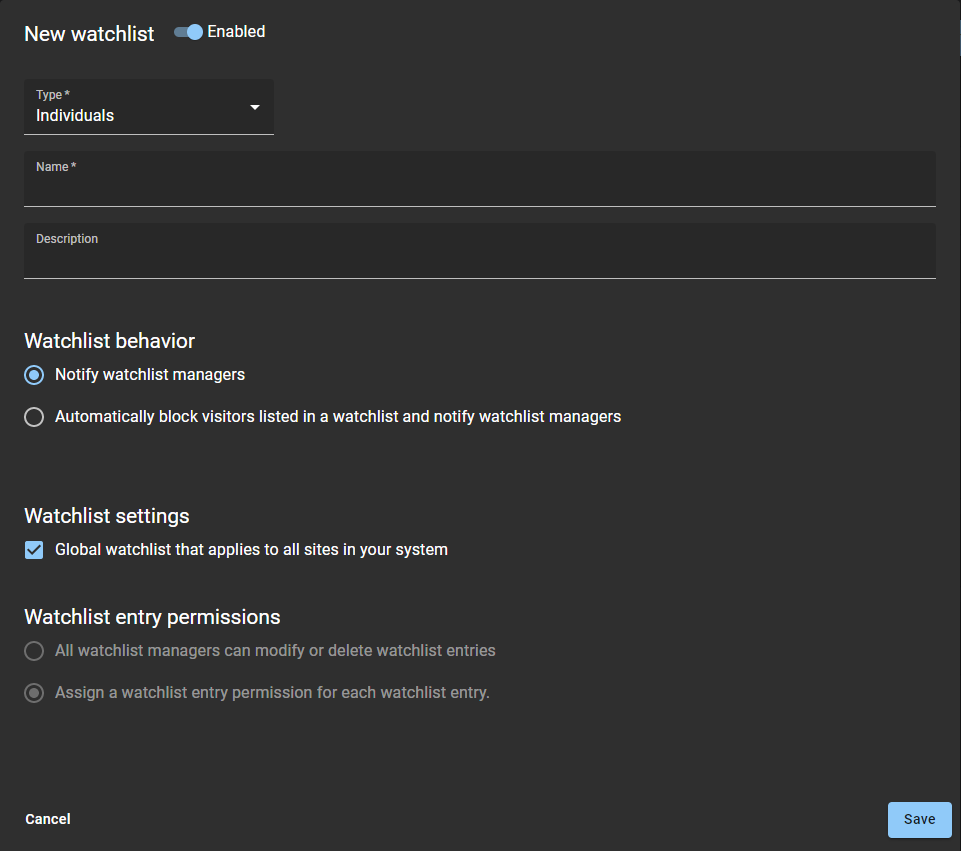
Click Add watchlist, then use the Enabled
slider to turn the watchlist on or off..
-
In the Type field, select a watchlist type:
-
Enter a name for the watchlist.
The name of a watchlist can be changed at any time to suit your needs. Use a discreet
name to avoid exposing sensitive information in notifications.
-
Enter a description for the watchlist.
-
In the Watchlist behavior section, select one of the
following:
- Notify watchlist managers
- Automatically block visitors listed in a watchlist and notify watchlist
managers
-
In the Watchlist settings section, choose a global watchlist or a
site-specific watchlist.
Do one of the following:
- Select Global watchlist that applies to all sites in your
system.
- Apply the watchlist to one or more specific sites:
- Clear the Global watchlist that applies to all sites in your
system option.
- Add your sites in the Watchlist entry permissions section
and press Enter.
-
Click Save.