To approve identities imported into Genetec ClearID™ using a CSV file, a
Supervisor or identity approver must review the pending requests and then decide which
ones to approve.
Procedure
Click My workspace
> Tasks.
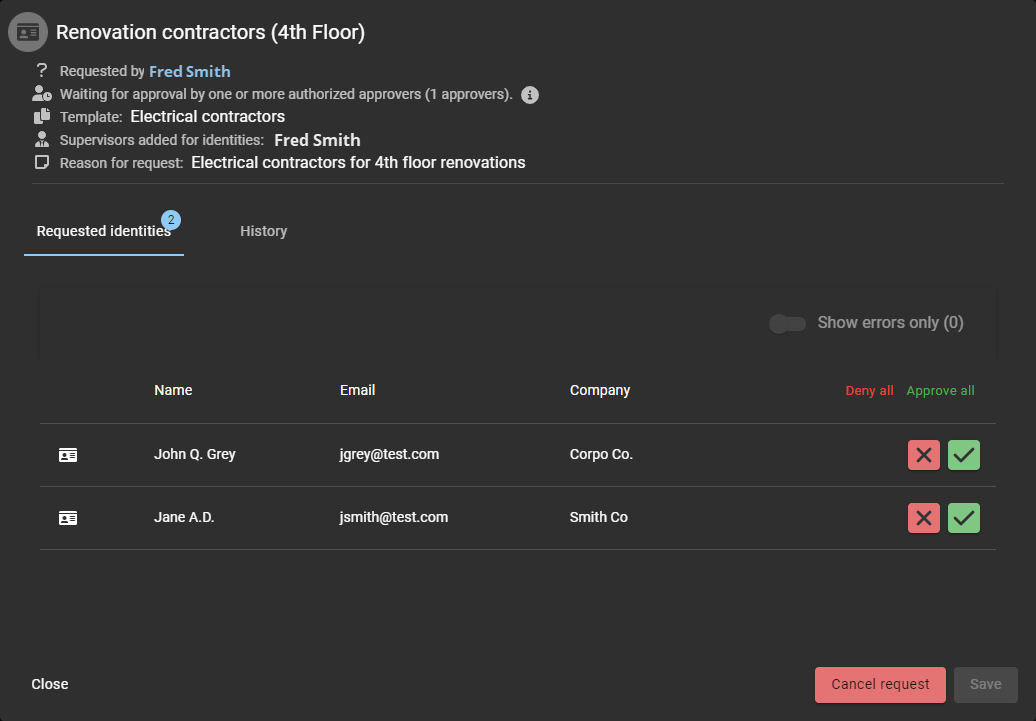
In the Tasks list, click an identity request to view
details.
The identity request options differ for requesters, Supervisors, and
approvers.
Review the identity request details.
If all the identities in the request are correct, click Approve
all then click Save.
If all the identities in the request are not correct, click Deny
all then click Save.
Click View identity request details () to modify an identity.
Click Edit and make changes.
Click Save.
If the request is not valid or contains incorrect information, click
Deny ().
Enter the reason for denial and click Confirm.
If the request is valid and correct, click Approve ().
Click Save.
Enter a reason for approval and click Confirm.
The identity request is now approved. The identity is created
and, if applicable, inherits the role access to associated areas during the periods specified
in their identity request.
Additional communications might also be provided by your
organization regarding where and how to retrieve a badge access card.

 ) to modify an identity.
 ).
).
 ).
).