To ensure security compliance and audit readiness, Site owners can set up area access
reviews to occur at scheduled intervals. You can also start an area access review manually if
required.
Before you begin
Make sure that the site is not already part of another review.
What you should know
Site owners can define a review schedule for one or multiple areas under their
site.
Procedure
From the homepage, click Organization
> Access reviews.
Click Schedule access review.
In the Select review type dialog, select Area access
review.
In the Area access review configuration dialog, enter a name for
your area access review.
Search for or select the site for the
review.
Search for or select the areas to include.
(Optional) Select Generate role access reviews to automatically
trigger a role access review when a scheduled access review is triggered.
This setting is enable by default and creates role access reviews for all roles with
access to the selected areas. You can also schedule role access reviews
independently.
(Optional) Select Enable review verification to add a
second-level review to the access review, and enter the names of your verifiers.
You can add up to 20 verifiers in the Verifiers field. Only one
verifier from the list is required to complete verification for the access review.
Select the Schedule reviews frequency that you require.
To ensure your security compliance and audit readiness, schedule your site access
reviews so to automatically trigger on the day, week, or month before corporate audits or
site safety checks.
You can manually start an access review by selecting the
Now schedule. Typically, manual access reviews are used to test
reviews before they are scheduled to check that all participants are properly set, or to
force a review after an incident.
The options that are displayed vary depending on
the selected frequency.
Select when to trigger site access reviews:
Yearly
Select a day and one or more months.
Monthly
Select a day.
Weekly
Select one or more weekdays.
Select the review time.
The time zone of the site is used for all scheduled review times.
(Optional) Add details in the Notes field.
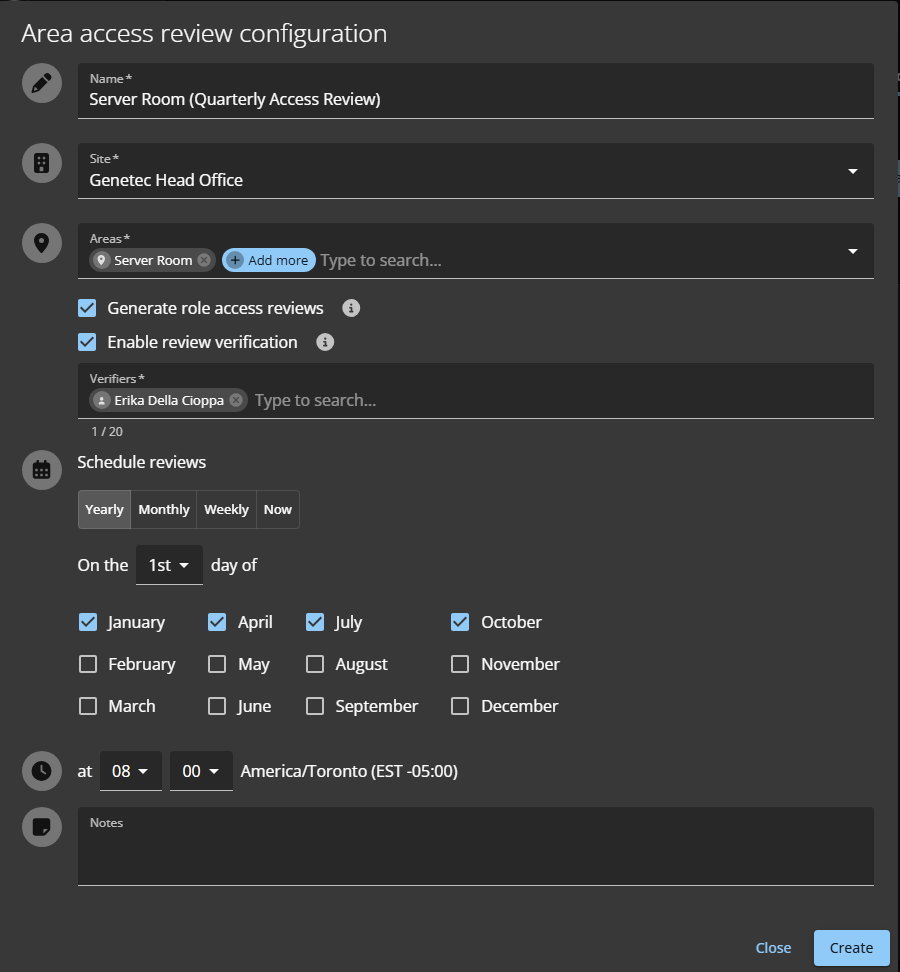
A server room review scheduled to occur
Yearly at quarterly intervals, on the first day of the month at
08:00. The review will generate a role access review and requires verification.
Access reviews scheduled for Now do not appear on the Scheduled Access
reviews page. Instead, they are immediately displayed in the My
tasks view of the relevant reviewers.
Click Create.
The scheduled access reviews are displayed in the Access
reviews page.
(Optional) Click Download CSV and follow your browser prompts to
save a copy of the list of scheduled access reviews.
(Optional) Click an area access review in the list to see the schedule details.
To display all access reviews, you can click Go to access reviews
report.
Example
After you finish
When the scheduled time arrives, the site owner or area owner must complete the access
review.

 Access reviews scheduled for Now do not appear on the Scheduled Access reviews page. Instead, they are immediately displayed in the My tasks view of the relevant reviewers.