
Printing a test badge from the Self-Service Kiosk
To help you confirm that the printer is working as expected, you can print a test badge. This can be done after the initial setup or when replacing the label roll.
Before you begin
What you should know
- 62mm Black (Brother Part No: DK-2205)
- 62mm Red and Black (Brother Part No: DK-2251)
- 57mm Black (Brother Part No: RD001U1S)
- The labels for the Brother TD-4550DNWB printer MUST be oriented correctly; otherwise, badge printing issues can occur.
Badges can be printed in either Portrait or Landscape format.
Procedure
-
In the Genetec ClearID™ Self-Service Kiosk mobile app, tap settings (
 ).
).
-
Collect and examine your test badge.
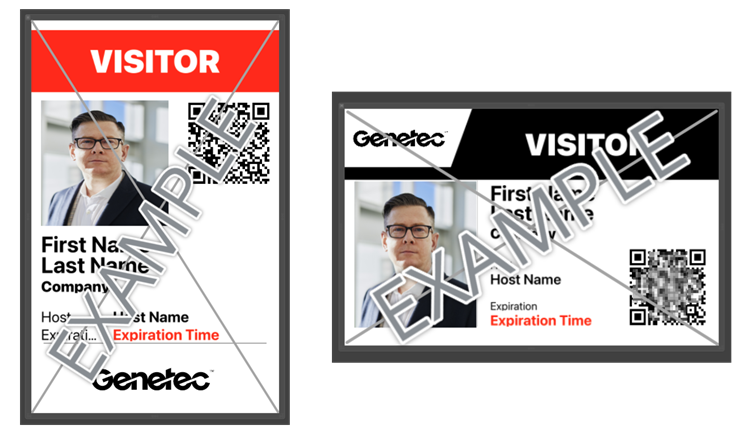
Badge dimensions: 10 x 6.1 cm or 3.94 x 2.56 inches.
When printing to a Brother TD-4550DNWB label printer, your badges are printed in black and white.
You are now ready for visitors to use the ClearID Self-Service Kiosk and print their own visitor badges during their check-in.
After you finish
Occasionally, you might need to order supplies, replace the coin cell battery, recharge the optional battery unit (Brother QL-820NWBc or QL-820NWB only), or clean the label printer.
For more information, see the third-party user guide documentation for your printer.