Configuring Microsoft Entra ID management
settings
2026-04-28Last updated
To control how and when information is synchronized between Microsoft Entra ID and
Genetec ClearID™, you can configure the management settings in the ClearID portal.
You must be an Account administrator to configure Microsoft Entra ID synchronization
management settings in ClearID.
Procedure
In the ClearID web portal, click Administration
> Identity synchronization.
Select the Microsoft Entra ID configuration you want to configure.
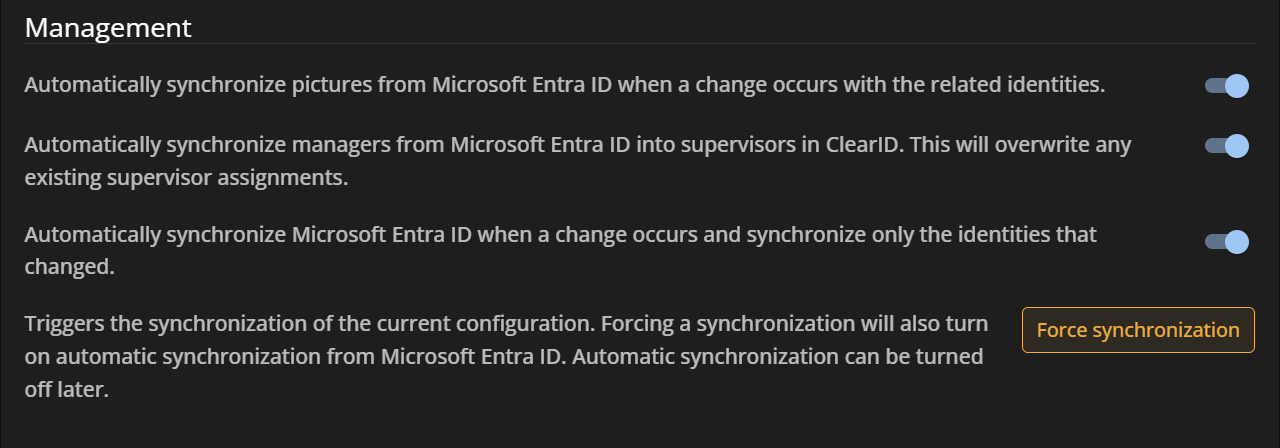
In the Management section of the configuration, edit the
synchronization settings as needed:
Synchronize pictures
Sync pictures from Microsoft Entra ID when identity data changes.
Synchronize managers
Map Entra ID managers to ClearID supervisors. This overwrites any existing
supervisor assignments.
Automatic synchronization
Enable real-time sync for identity changes. Only modified identities are
updated.
Click Force synchronization to force the initial synchronization
between Microsoft Entra ID and ClearID.
When you force synchronization, the system begins a full sync process, which may take
some time to complete. This action also automatically enables automatic
synchronization.
Automatic synchronization keeps ClearID updated by syncing changes
made to identity fields in Microsoft Entra ID. However, it does not sync changes if only
the identity's picture is updated.
You can disable automatic synchronization later
if needed, such as for troubleshooting purposes.
After you finish
Verify that your users and credentials synchronized successfully and troubleshoot any
potential errors.