Approving visit event requests

2026-02-13Last updated

Visit event approvers must review the pending approvals before deciding which requests to approve.

Before you begin

Enable visitor management for sites.

What you should know

  • After approval, a confirmation email is sent to both the visitor and the host outlining the details of the visit.

Procedure

  1. Open the email notification from the request submission.
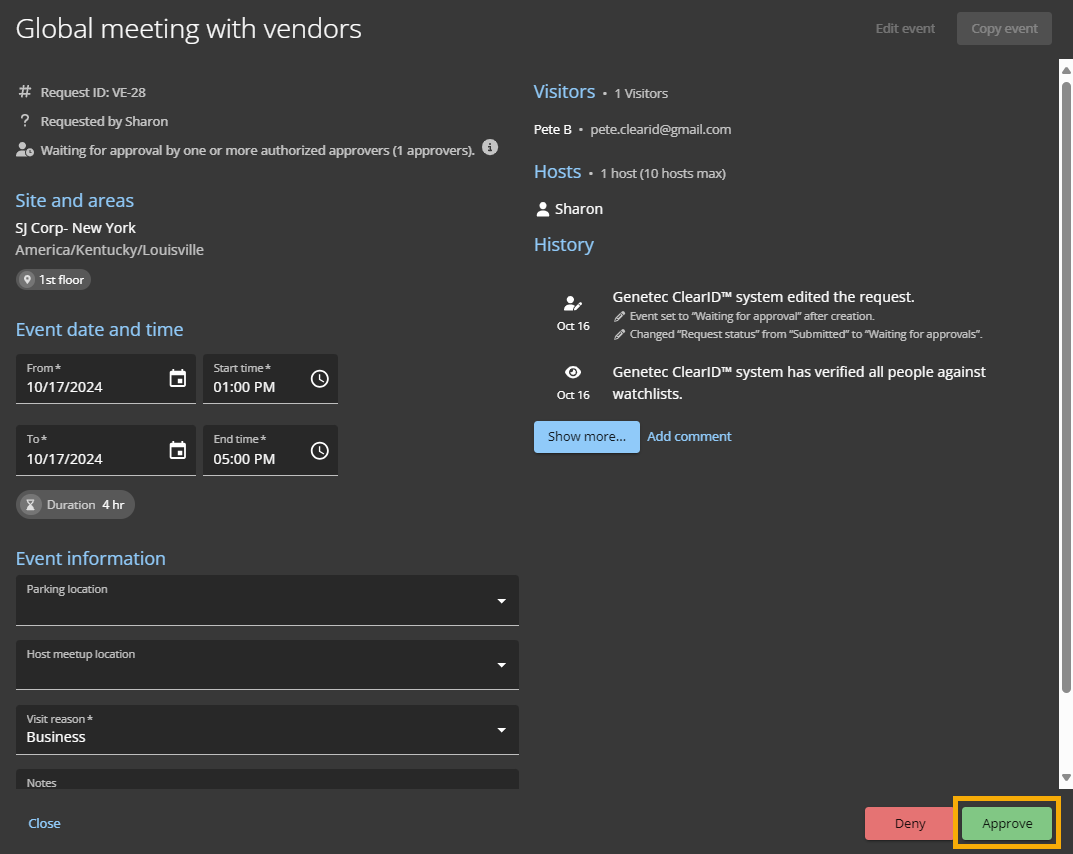
  2. To view the details of a request, click Approve.
    The Genetec ClearID™ portal opens.
  3. Review the request details and make any required changes.
    For example, you can amend the dates due to an office closure, or amend the parking location to a more appropriate location.
    1. Click Show more to view the history of changes.
    2. Click Add comment to add notes to the history.
      For example, you can add notes explaining why you changed the date and time of the visit.
  4. Click Approve.
    1. Enter a reason for the visit approval.
    2. Click Confirm.
    Tip:
    To view a list of all pending approvals, go to Dashboard > My tasks and select Pending from the list.