Synchronizing custom credential formats

2026-03-31Last updated

To synchronize custom credential formats across multiple Synergis™ systems, an Account administrator must configure custom credential format mappings in the Genetec ClearID™ portal.

What you should know

  • Custom card formats must be available on both your primary and secondary Security Center systems for ClearID synchronization to work.

Procedure

Adding custom card formats in Config Tool
  1. Access Config Tool on your primary Security Center system.
    1. Refer to the Security Center Administrator Guide to create custom card formats.
    2. (Optional) Select your custom card format and click Edit, then click Export.
      The custom card format is exported as an XML file. You can import the XML file into your other Security Center systems.
  2. Access Config Tool on your secondary Security Center system.
    1. Open the Access control task, and click the General settings view.
    2. Under Custom card formats, click Add an item ().
    3. In the Custom card format editor, do one of the following:
      • Manually add the same configuration you added in your primary system.
      • Click Import and select the XML file you exported from your primary system.
  3. Click OK > Apply .
Configuring custom card format synchronization in ClearID
  1. In ClearID, click Access management > Administration > Credentials .
  2. Ensure one of the following credential synchronization modes is selected:
    • Use a specific access control system as the source of credential synchronization
    • Use the system associated with the primary site of the identity as the source of credential synchronization

    For more information about credential synchronization modes, see Configuring credential synchronization.

  3. Click next to Custom formats in the Credential types and formats section.
  4. Enter a name for the mapping.
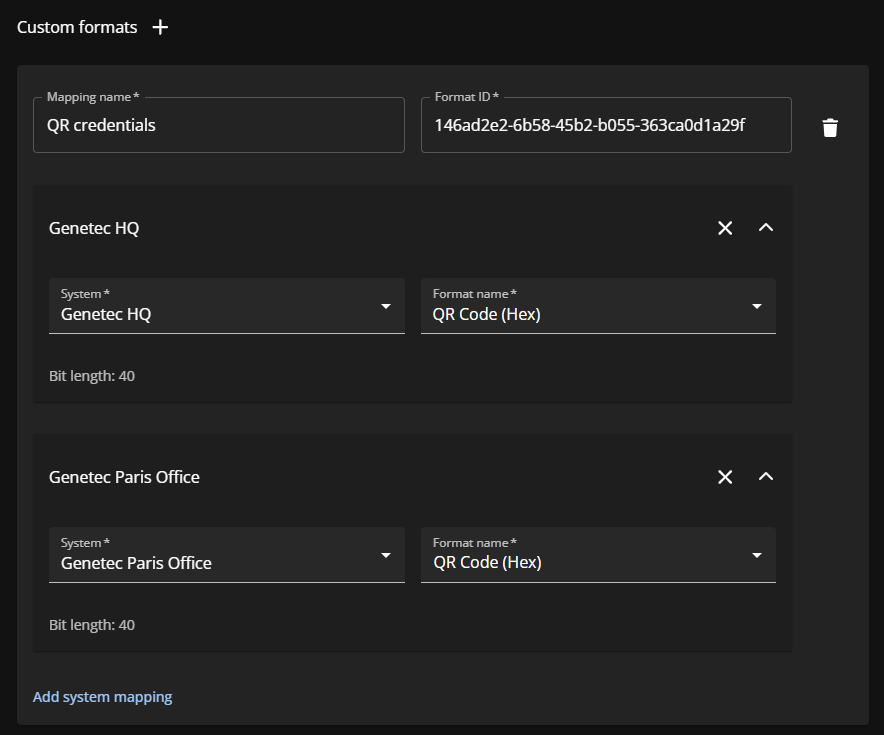
  5. Define your system mappings:
    Custom credential format mappings in the ClearID portal.
    1. Select your primary system from the System list.
    2. Select your custom credential format from the Format name list.
    3. Click Add system mapping.
    4. Select your secondary system from the System list.
    5. Select your custom credential format from the Format name list.
      You must select the same custom card format for both the primary and secondary systems.
  6. Click Save.