
Deleting sites
2026-05-04Last updated
To permanently remove a location and its associated access parameters from the system, an Account administrator can delete a site in Genetec ClearID™.
What you should know
- Deleting a site will remove it as the primary site for any identity that has it assigned.
- Deleting a site prevents further site access reviews from being generated. The historical data is still available in the access review report.
Procedure
-
Complete any actions listed in the Delete sites dialog box, if
applicable.
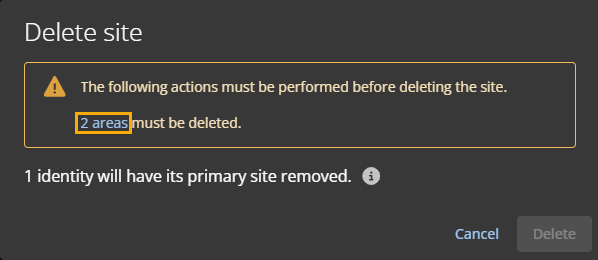
If the site you are deleting has areas, those areas must be deleted first:
-
In the Delete sites dialog, click the
areas hyperlink.
-
In the Delete sites dialog, click the
areas hyperlink.