Configuring the ClearID SCIM integration synchronization settings
2026-08-14Last updated
To determine what identity data is synchronized to Genetec ClearID™, you must select the required synchronization settings and activate provisioning in Microsoft Azure.
Before you begin
What you should know
Procedure
-
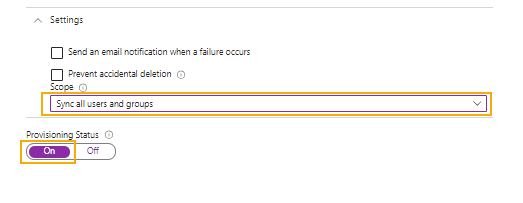
If you chose Sync all users and groups, in the
Provisioning status section, move the slider to
On and click Save.
-
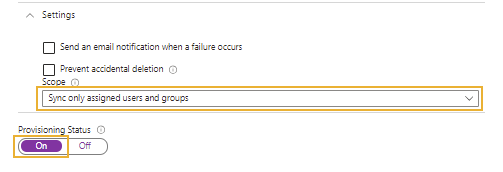
If you chose Sync only assigned users and groups, complete the
provisioning settings.
- In the left navigation bar, click Users and groups.
- Click Add group.
- Click None selected, search for and select the group you want to add, and click Select.
- Click Assign and repeat for each group that you want to add.
- Return to the Provisioning page and click Settings.
- In the Provisioning status section, move the slider to On and click Save.