
Verifying a role access review
2026-04-27Last updated
To support compliance and audit readiness, verifiers can complete a second-level check in Genetec ClearID™ to confirm that role access, provisioning policies, and role members are still valid.
Before you begin
What you should know
- Verifiers can complete an access review from the Tasks page or from an email notification..
- Verifiers and reviewers must reach a consensus before an access review can be completed.
- Reviews can’t be edited after completion.
- Completed reviews are stored for audit and tracking purposes.
Procedure
-
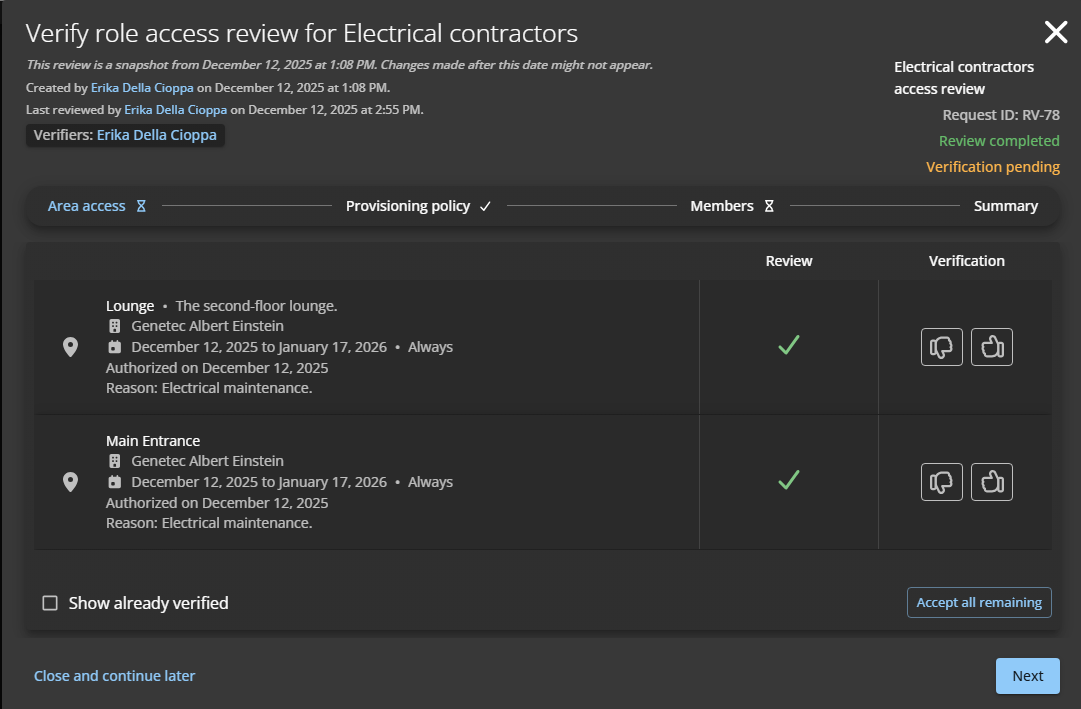
In the Area access section, verify that the access is still
valid.
-
Click
 to
accept the current review.
To speed up verification when the list is long, click Accept all remaining and deny any access that is no longer required.
to
accept the current review.
To speed up verification when the list is long, click Accept all remaining and deny any access that is no longer required. -
Click
 to deny
the current review.
If you deny the current review, the reviewer must revise their decision and then the review is returned for another round of verification.
to deny
the current review.
If you deny the current review, the reviewer must revise their decision and then the review is returned for another round of verification.
-
Click
-
In the Members section, confirm that
the members are still valid.
-
Click to
accept the current review.
-
Click to deny
the current review.
- (Optional) Select Show already reviewed to display items that have already been reviewed.
- Click Next.
-
Click