Configuring custom credential format synchronization

2026-05-22Last updated

To synchronize custom credential formats across multiple Synergis™ systems, an Account administrator must configure custom credential format mappings in the Genetec ClearID™ portal.

Before you begin

What you should know

  • Custom card formats must be available on both your primary and secondary Security Center systems for ClearID synchronization to work.
  • ClearID only supports Wiegand card formats for custom credentials.

Procedure

  1. In ClearID, click Access management > Administration > Credentials .
  2. Ensure one of the following credential synchronization modes is selected:
    • Use a specific access control system as the source of credential synchronization
    • Use the system associated with the primary site of the identity as the source of credential synchronization
  3. Select which supported credential types and formats to synchronize from the Credential types and formats section.
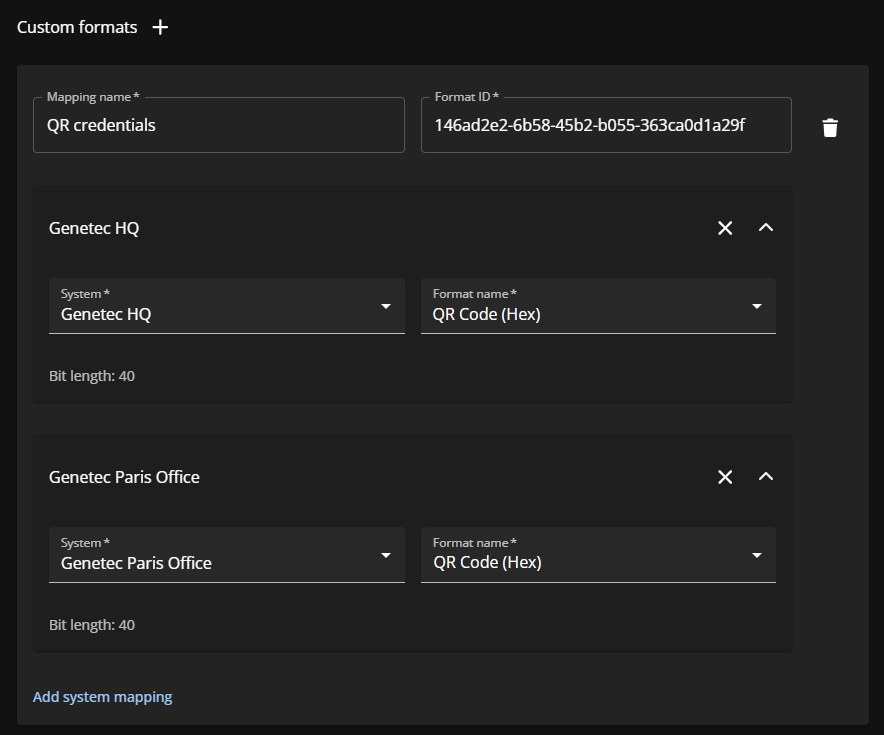
  4. To map custom credentials, click Add custom format.
  5. Enter a name for the mapping.
  6. Define your system mappings:
    Custom credential format mappings in the ClearID portal.
    1. Select your primary system from the System list.
    2. Select your custom credential format from the Format name list.
    3. Click Add system mapping.
    4. Select your secondary system from the System list.
    5. Select your custom credential format from the Format name list.
      You must select the same custom card format for both the primary and secondary systems.
  7. Click Save.